
Set up your team & SSO
Team administration lives on the Team and roles screen, listed as Team in the Administration group of the sidebar. This guide is for the owner setting up access. It covers bringing teammates in, deciding what they can do, connecting single sign-on, and producing the access evidence an examiner will ask for. For what each role means, read Roles and permissions.
How access works
Your staff sign in with a password and an authenticator app from day one, and with your institution's single sign-on once an owner connects it. Connecting it, verifying your domain and requiring it are owner steps on the Access & SSO tab in Settings, covered under Sign-in and security. Once single sign-on is required and directory sync is on, your existing joiner, mover and leaver process is the control of record. When someone leaves your directory, they lose the workspace with everything else.
There are two supported ways for a person on your staff to arrive in your workspace, a guest path for outside directors and outsourced reviewers, and one separate path for regulators.
Invite a teammate
On Team and roles, choose Invite member. You provide an email address and an initial role. You can also add a job title and job families, either one by one or from a preset. Then choose Send invitation.
The invitee receives an invitation email and appears in the member list as Invite pending. That email is sent by WorkOS, our identity partner, from its own sending domain rather than from a Zovos address. Tell your mail team before you start, so the first invitations do not sit in quarantine. Their access turns on when they sign in for the first time. That sign-in is what accepts the invitation, and it cannot be done for them from the admin screen. A pending row carries Re-invite and Cancel actions and nothing else.
Every system role except Examiner, including Risk Approver, comes with a directory mapping, so you can invite into it straight away. A custom role you create has no mapping, and an invitation into it is refused until an owner adds one on the Access & SSO tab in Settings.
Get a second approver signed in early. Maker-checker means the person who submits a decision cannot approve it, and critical decisions need two distinct signers, so a workspace with one signed-in person cannot complete them. An invitation is not enough. The second person has to sign in themselves.
Invite outside directors and outsourced reviewers as guests
A person who is not on your staff and not in your directory signs in as a guest, with an emailed code or a passkey, under your MFA setting. Outside directors are invited with the Outside director access group, one at a time or in bulk from a CSV file that names each director's role and committees, as Board & governance describes.
An outsourced loan review firm's reviewer is invited with the Outsourced loan reviewer access group, which needs an end date and the reviewer's firm. The reviewer reaches credit risk review and nothing else, and the access ends on that date. When a guest's access ends, they leave the roster and the people pickers. If a former guest later joins your staff, an owner can convert them to staff and choose their roles in the confirmation.
Members provisioned by your directory
Directory synchronization is enabled with us during onboarding. There is no self-serve switch for it in the product. Once it is on, membership and roles flow from your identity provider instead. You add the person to the directory group, or assign the role directly in your provider. They are then provisioned into Zovos on the next sync and sign in with your organization's single sign-on. No separate invitation is involved.
A directory-managed member's row shows Role from your identity provider in place of the role editor, because their role is resolved from your directory at every sign-in. Change it in your provider, not here. An unmapped directory group is refused rather than defaulted to a role, so a brand-new person who cannot sign in usually needs a group or role assignment on your side.
Assign and change roles
For members who are not directory-managed, edit the roles on the member row. A member can hold several roles and access groups, within the combination rules that Roles and permissions describes. The change takes effect on the member's next request and is written to the audit trail with your name against it.
Each row also carries lifecycle actions:
- Suspend. Access is turned off and membership is retained. Suspending a member ends their sessions and disables the API keys they minted. Use this for leave or an investigation.
- Offboard. This is the departure state, and it keeps the historical record intact. Offboarding offers a bulk reassignment of everything the person owns, and admins are alerted when your directory deprovisions someone who still owns records.
- Reactivate. This restores a suspended member.
Two guards keep the workspace from being emptied by accident. You cannot suspend yourself. The product also refuses to suspend, offboard or demote the last active member who holds settings access, including through a role change, so there is always somebody left who can administer the workspace. You also cannot remove settings access from your own role or from the last role that holds it.
Owners, business units and delegates
Every first-line record has one accountable owner, picked from your active members, and an owning business unit. Owner pickers refuse inactive members. An owner change goes through one reassignment, recorded in the record's ownership history, and Bulk handover moves many records at once. The roster's ownership panel shows what each member owns, explains records you cannot see in its total, and lists open records whose owner has left. An as-of roster export shows who owned what on a given date.
Members are attached to business units, and the head of a unit gets read-only oversight of its records. When you retire a business unit, it refuses new records on every screen and import while existing records keep their unit, and the unit editor hands the retired unit's records over to the nearest unit head above it.
A member can set an out-of-office delegate for their tasks, reminders and approvals. The delegate acts on the absent member's items, including from an AI assistant, and every act and evidence upload is recorded as acting for the owner. Reminders and assignment notices go to the item's owner rather than to the whole workspace. See Roles and permissions for what a delegate may and may not do.
Set job families and titles
Job families say what a person does, and they personalize the workspace for that person. They order the sidebar, choose the dashboard panels, and give a business-line owner a My work home. They never grant a permission and never change the price. Roles and permissions lists the families and presets and explains exactly what they change.
Each member row on Team and roles shows the person's title and job families beside their role. Choose Families on the row to edit them. You can pick several families, start from a preset such as Chief risk officer or Director, and set a job title. Editing families needs the permission to manage the team, which the Owner role holds. Every change is written to the audit trail. Settings also lists each member's families, read-only, on the Access & SSO tab.
If directory synchronization is on, an owner can map directory groups to access groups on the Directory Sync panel under Integrations in Settings, and a group's job families come with it. When a person joins a mapped directory group, they receive the access group. When they leave it, they lose the group and every role and family it granted. Families set on the person directly stay until you edit them on the Team screen.
Add an external examiner or auditor
Regulators are not invited as teammates. An owner grants an examiner a time-boxed, scope-limited session for a named examination, read-only apart from a few fieldwork actions, and the examiner role cannot be handed out through single sign-on or directory sync. The examination workflow is covered in Exam management and audit readiness.
An outside CPA, a credit union's Supervisory Committee audit firm or an independent AML/CFT tester takes the same kind of grant on its External auditor lane, which lasts until an engagement end date you set, up to 90 days. An outsourced or co-source internal-audit firm doing your internal audit work is different. Give that firm's staff a custom role built from the Co-source internal auditor starting point, which Roles and permissions describes.
Access reviews and evidence
The Team and roles screen carries a periodic access review, so recertification is a recorded exercise rather than a spreadsheet emailed around the governance, risk, and compliance team. You can also export access-control evidence as CSV or PDF straight into an exam binder. The export covers the member list, roles, statuses and the review record.
Every membership, role and status change is in the append-only audit trail, which is the artifact an examiner asks for when they ask how you control access.
Team setup from your AI assistant
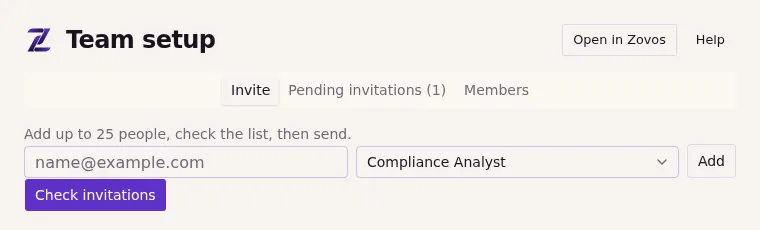
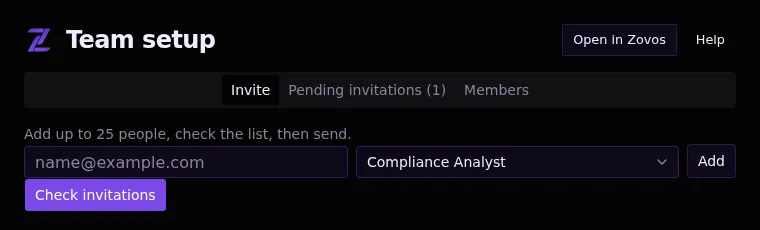
In an AI assistant that shows Zovos screens in the chat, such as Claude, ask to set up your team and it opens team setup with open_team. It has three tabs.
- Invite. Add up to 25 people, each with an email and a role. Check invitations previews the list, and Send invitations sends it. Each row is checked on its own, so a refused row, such as a repeated email or the reserved examiner role, leaves the others in place.
- Pending invitations. Resend or cancel an invitation nobody has accepted yet. Both ask you to confirm.
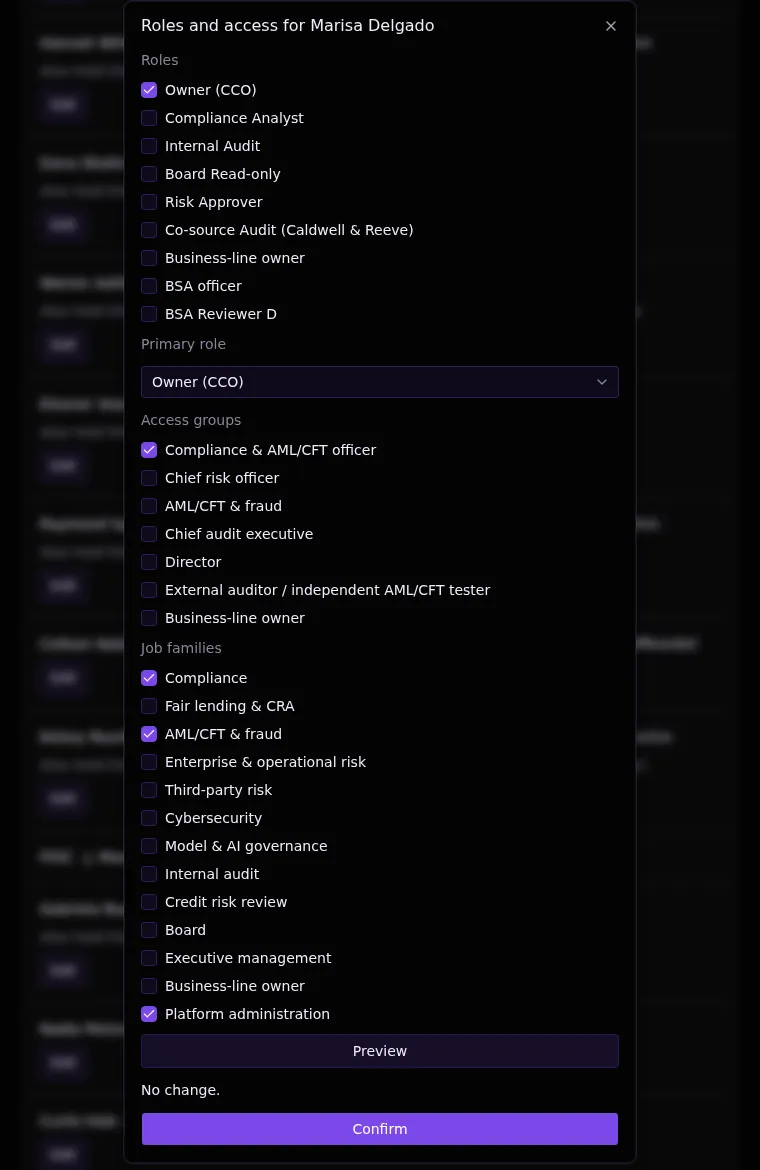
- Members. Every member with their roles. Edit opens a member's roles, primary role, access groups and job families. Preview shows what would change, and Confirm saves it.
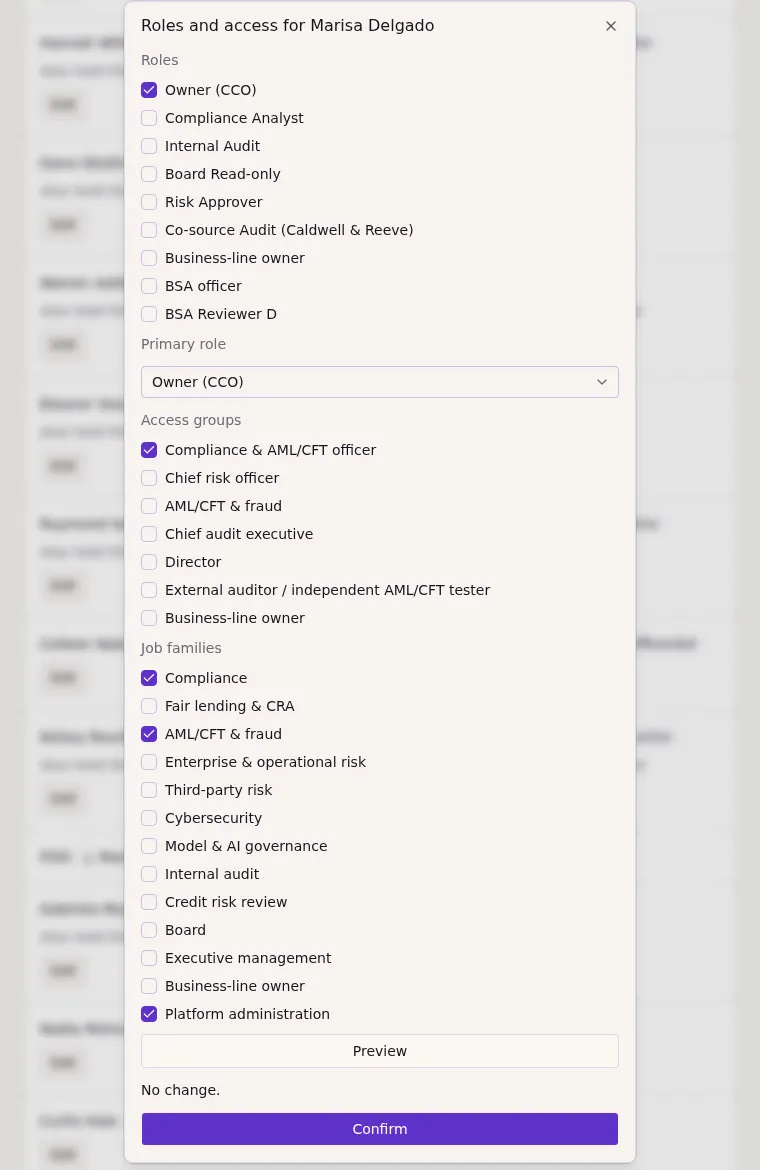
Inviting and editing take the team permission, as on the Team screen. The rules are the same as in the web app. The examiner role stays reserved for examiner access, the internal audit wall holds, a member provisioned by your directory is changed in the directory, and the workspace always keeps someone who can change settings. When a change is saved, the chat gets a short line saying what changed.
Notes and limits
- An owner connects your identity provider on the Access & SSO tab in Settings. Turning on directory synchronization is done with us. Mapping your directory groups and role slugs to Zovos roles is an owner-editable panel on the same tab, and you change it yourself whenever your directory changes. See Directory sync and role mapping.
- An owner resets a member's authenticator app with Reset MFA on their row. See Lost or new phone.
- Everyone signs in at the same address, https://app.zovos.ai/login, with one Sign in button and no institution picker. A session ends after 30 minutes without activity, and in any case at the end of its lifetime. The lifetime is eight hours unless an owner sets it between one and twelve hours under Session lifetime on the Access & SSO tab, and a change applies from the next sign-in. An owner can end a member's sessions early from the Sessions panel on their row on the Team screen.
- An owner can optionally restrict the workspace to a list of your own IP ranges, per tenant, IPv4 or IPv6. It is maker-checker gated. A change is staged and only takes force once a second approver signs it off. Examiner sessions are exempt, because regulators come from networks you do not control. Take the lockout warning seriously. If the allowlist excludes your own address, recovering it needs Zovos support.
- A member who has been invited but has never signed in cannot approve anything, and the product will not let an administrator mark them active.
- Seat usage in settings is drawn live from your active members and shown beside your contracted number. It is informational. The figure is there for your own planning and for a renewal conversation, and the product does not enforce it as a cap.