
Onboarding your institution
We set Zovos up together with you. There is no self-serve signup and no trial account to create. Onboarding starts with your Zovos contact, and it ends with a workspace your team signs in to and an owner who can bring the rest of the governance, risk, and compliance team in. This guide is for the chief compliance officer or program owner running that process at your institution, whatever its size. Once you are inside, Getting started with Zovos covers the workspace itself and Set up your team and SSO covers ongoing team administration.
What we provision and what you supply
We create the workspace. That means your own database schema, a dedicated key for your stored documents, the identity organization your sign-ins resolve against, and the record of your contracted terms. You do not install anything, and there is nothing to run on your own infrastructure. What we hold and how it is separated is described on the security page.
Three things have to come from you before we can start:
- Your institution's display name. This is the name shown in the product and on anything you export from it.
- A short identifier. It uses lowercase letters, numbers and underscores, begins with a letter, and names your workspace internally. It is permanent. There is no rename path once the workspace exists, so pick something you will still recognize in five years.
- Your first owner. We need the name and email address of the person who signs in first and holds the owner role. That is normally the CCO or the program owner.
We record your commercial terms against your workspace, so you do not enter them yourself. Those terms are the plan, the contracted seat count and the renewal date.
Your first sign-in
Everyone in your institution reaches Zovos at https://app.zovos.ai/login. There is one address and one Sign in button, with no institution picker. Your workspace is determined by the identity you sign in with, which is why the link is the same for every customer.
Your workspace starts on a password and an authenticator app, so nothing about single sign-on has to be ready on day one. We send your first owner an invitation email. They choose a password and set up an authenticator app at their first sign-in, as Signing in with a password and an authenticator app describes. That person has to sign in before anyone else can be brought in. Invitations are then sent from inside the product by someone who already holds the owner role, and an account that has never signed in is not yet active.
Examiners do not arrive this way. A regulator gets a time-boxed session, read-only apart from a few fieldwork actions, that an owner issues during an examination and hands over as a one-time token, pasted on the same sign-in page. See Exam management and audit readiness and Roles and permissions.
Connecting your identity provider, when you are ready
Your owner connects single sign-on from the Access & SSO tab in Settings whenever your institution is ready, with your identity provider administrator beside them. There is no setup link to wait for and no secret to exchange. The Sign-in and security guides walk through Okta, Microsoft Entra ID, Google Workspace and any other OIDC or SAML provider, then verifying your domain and testing and requiring single sign-on. For Google Workspace, Zovos support completes one step of the connection today.
You may want membership and roles to flow from your directory rather than from invitations. If so, we set up directory synchronization with you. There is no self-serve switch for it. What happens after it is on is yours. Mapping your directory groups to Zovos roles is an in-product screen an owner edits, and it is covered under Directory sync and role mapping. An owner can also map directory groups to access groups, which bundle roles, job families and a scope.
What your network team needs to allow
Most institutions need nothing more than normal outbound HTTPS, but corporate proxies and allow-lists sometimes need these named:
- app.zovos.ai over HTTPS on port 443, including the WebSocket upgrade. The collaborative drafts editor uses a WebSocket on that same host and port. A proxy that strips the upgrade header breaks co-editing in Drafts and nothing else, because the rest of the product is plain HTTPS.
- WorkOS, our identity partner, and your own identity provider. Signing in is a top-level redirect out to WorkOS and back, and through your identity provider once single sign-on is connected, so they have to be reachable from the browser.
- Our document storage endpoint. Document uploads and downloads go directly between the browser and object storage rather than through the application. Ask support for the allow-list entry for your environment.
Two related facts are worth passing on. Zovos cannot be embedded in an intranet portal frame, because the product deliberately refuses to be framed. An owner can also restrict the whole workspace to a list of your own IP ranges if you choose. That is a real feature, and Set up your team and SSO describes it, including how not to lock yourself out.
Day one, in order
The order matters more than it looks, because several steps are prerequisites for the ones under them.
- Set your institution profile and timezone. Settings ships with generic defaults. They describe a bank under one billion dollars in assets, on UTC, with no charter states recorded. Until you correct the charter type, asset band and states, regulatory-change applicability is being judged against those defaults, and the daily digest and the obligations calendar run on UTC rather than your business day.
- Enroll your frameworks. This is owner-only, and it is the step that scopes everything downstream. Until it is done, the framework library, Citations and the Gap report are all empty. See Frameworks and citations.
- Invite your second approver and get them signed in. Critical decisions require two distinct signers, and an invited person is not an approver until they have signed in themselves. See Set up your team and SSO.
- Give each teammate their job families. A job family says what a person does, such as compliance, AML/CFT or internal audit, and a person can hold several. Families order the sidebar and choose the dashboard panels for that person. They never grant a permission and never change the price. Set them on the invitation or later on the Team screen. See Roles and permissions.
- Bring in your policies and controls. Import your control baseline and upload your policy documents so analysis is grounded in your real program rather than a template. See Policies and document management and Controls, testing and evidence.
- Ask your Zovos contact to confirm the regulatory library is indexed for your workspace. Agents cite the library, and until it is indexed they decline to run rather than answer without sources. Confirm it before the first agent run, not after.
- Run mapping on the Gap report, then run the gap analysis. Mapping is what produces the gaps. The Gap Analysis agent then works against a gap that already exists. Running them the other way round is the most common first-week stumble. Agent output is a proposal and never a decision. See How AI works in Zovos.
- Triage the first finding. Assign an owner, a due date and a root cause, and you have the beginning of a record an examiner can follow. See Findings and remediation.
Import your registers from your AI assistant
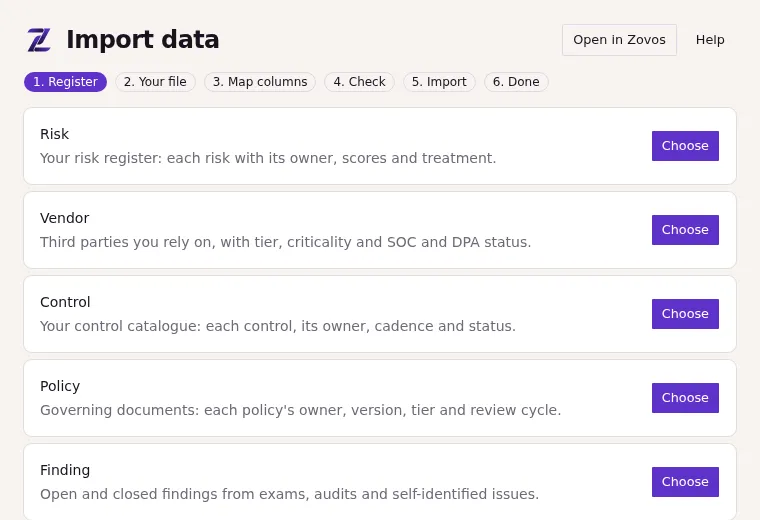
Your registers can come in through the import wizard, a Zovos screen that runs inside an AI assistant that shows screens in the chat, such as Claude. Ask your assistant to import your risks, vendors or controls and it opens the wizard with import_data. The file you drop goes straight to Zovos. It never enters the chat or the assistant's context, so there is no need to paste rows into the conversation, and you should not. The wizard has six steps on one screen.
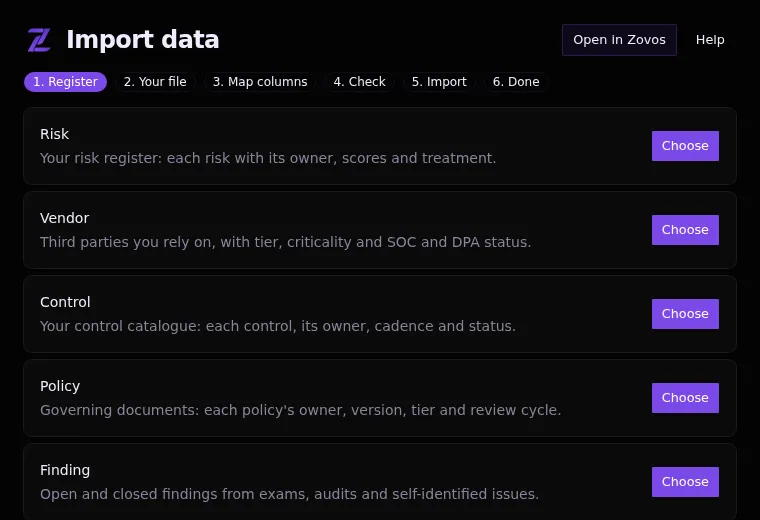
1. Register. Pick what you are importing. The list runs from risks, vendors, controls and policies to findings, obligations, key risk indicators, complaints and information systems, and each register says what goes in it. Key risk indicators, vendor contracts and evidence stay locked until the register they belong to has rows, with a button to import that one first. Recent imports lists your recent jobs, with Undo on a finished one and Resume on one that stopped.
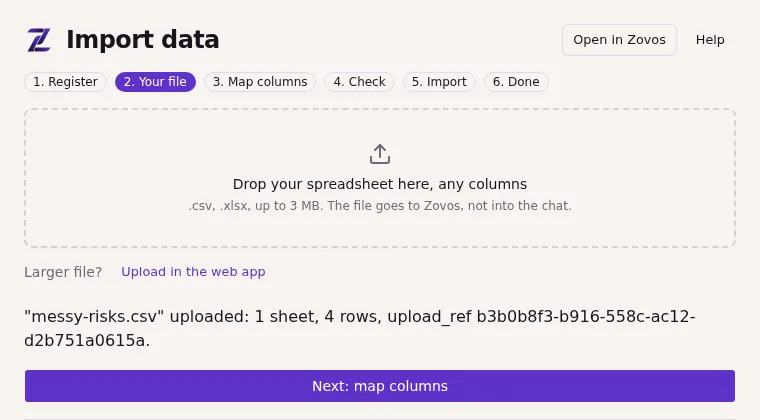
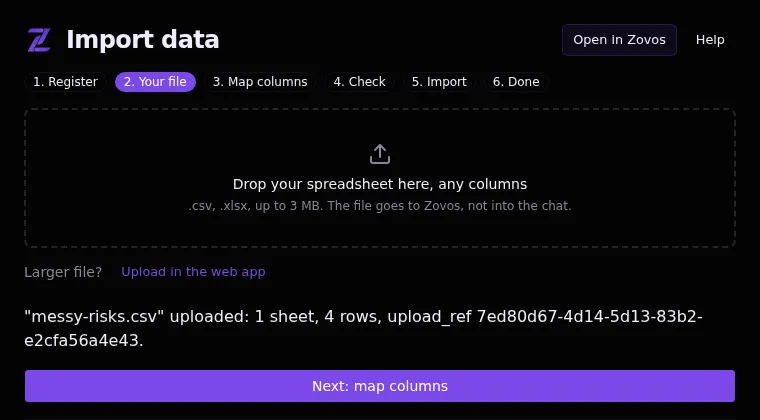
2. Your file. Drop a .csv or .xlsx file of up to 3 MB on the drop zone and choose Upload to Zovos. Zovos checks and profiles the file before the step finishes, and for a workbook you pick the sheet. The step also offers the register's CSV template and the Excel workbook to download, shows the header and example rows to copy, and has a form to type rows in when you have no file. Typed rows are previewed before they are imported.
3. Map columns. Zovos proposes a field for each of your columns, with a badge for how confident it is. Change any of them, or leave a column out of the import. The required fields are named, and the wizard does not move on while one of them is unmapped.
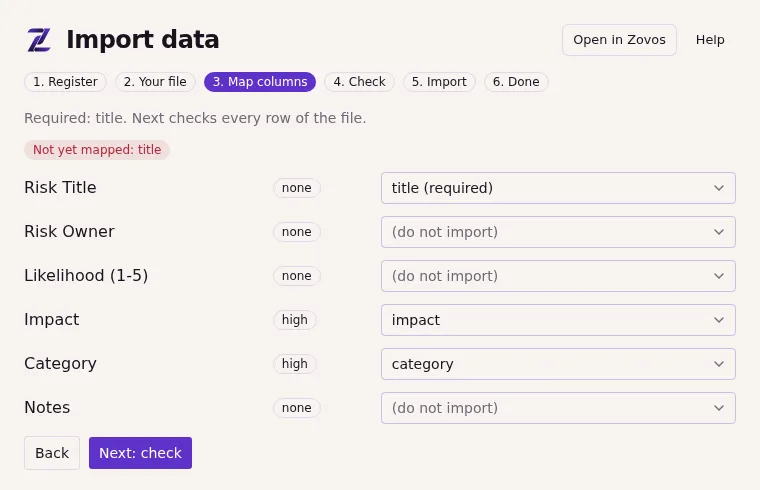
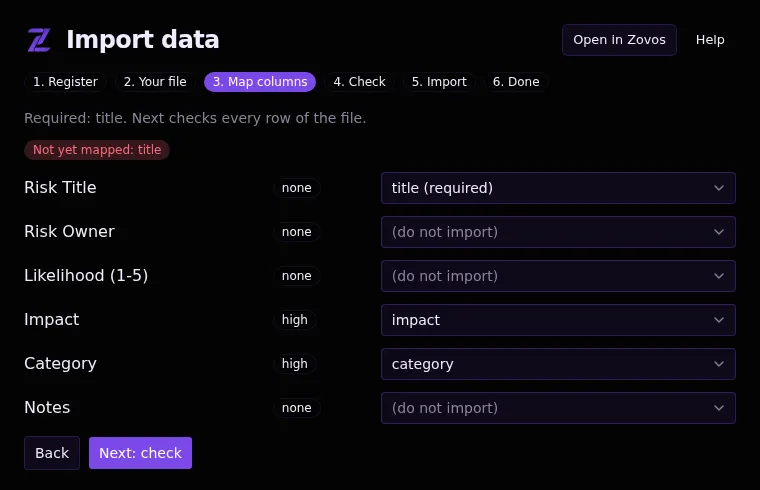
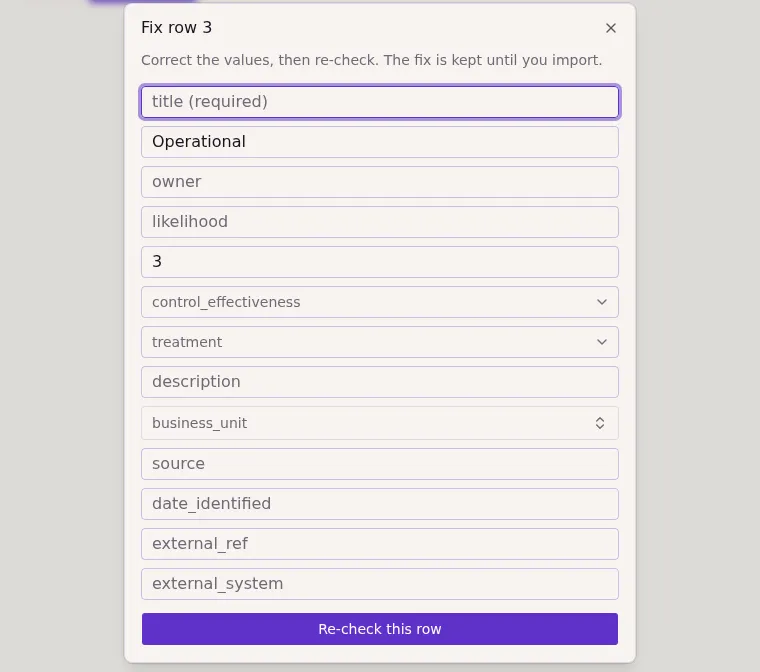
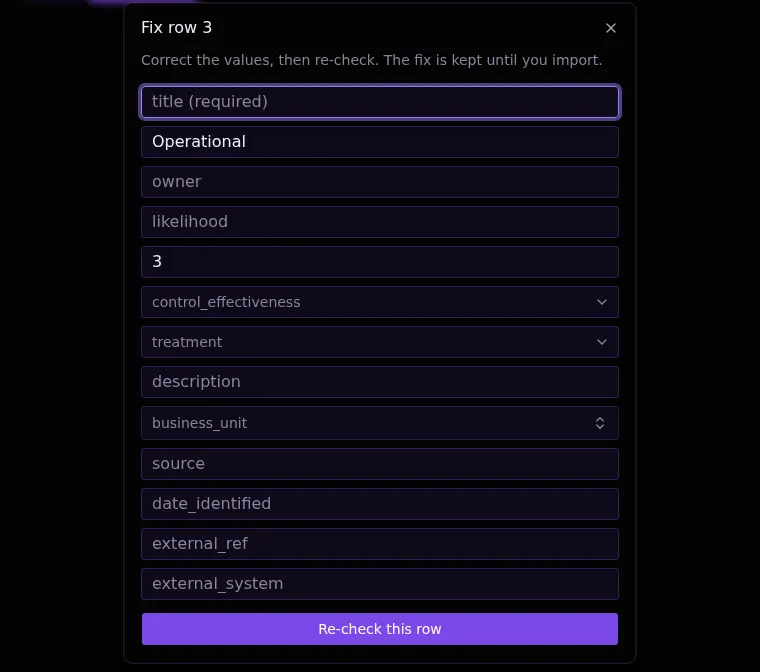
4. Check. Every row of the file is checked without writing anything. You see how many rows are new, how many update an existing record and how many have errors, with a table of the rows that failed, a page at a time. Click a row to fix it in a dialog. A fixed row is checked again and kept until you import. Save mapping for next time keeps your column mapping for the next file from the same source.
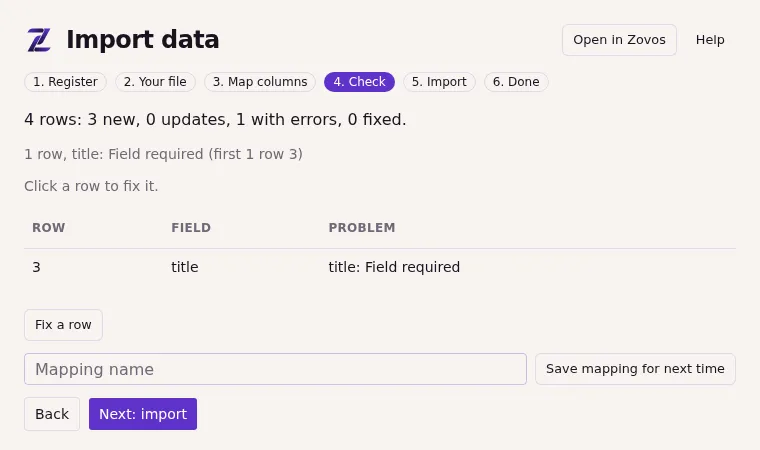
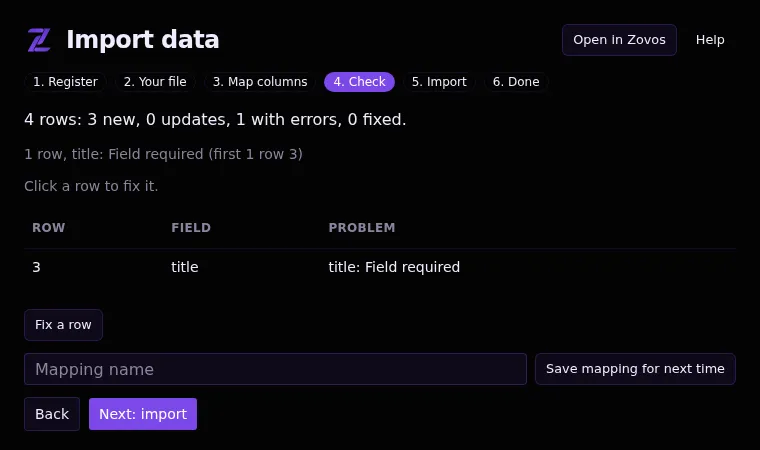
5. Import. Import is enabled once no unfixed error remains, or once you tick the box to skip the rows that still have errors. The file imports first and your fixed rows after it.
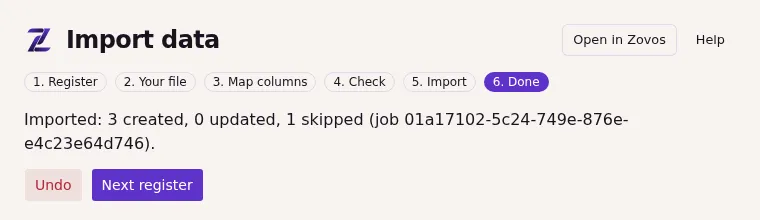
6. Done. You see how many records were created, updated and skipped, with Undo to roll the import back and Next register to carry on.
While a file uploads or imports, the screen's buttons are greyed out and a bar runs under a line saying what is happening, such as how many rows are importing. Keep the screen open until it finishes, which can take a minute for a large file. After each upload, import or undo, the wizard posts a short line into the chat with the job ID and the counts, so your assistant knows what happened. The line carries IDs, counts and the file name, and never the file's contents.
Limits
- 3 MB in the chat. A file dropped on the wizard can be up to 3 MB. For a larger file, choose Upload in the web app, which opens the import screen in Zovos.
- 10 MB and 50,000 rows per file. These are the largest file Zovos imports. A file at the row ceiling imports in one run.
- One import of a file at a time. A second import of the same file is refused while the first is still running.
Stopped and interrupted imports
If an import stops part-way, the Done step shows what was imported so far and why it stopped. Resume carries on from the row it reached, as the same import, so no row is imported twice. Undo removes what was imported. An import whose call was cut off, for example by a lost connection, shows as interrupted in Recent imports, with Resume.
In an assistant that does not show screens, the assistant explains the steps in text and points you to the import screen in the web app.
Import jobs
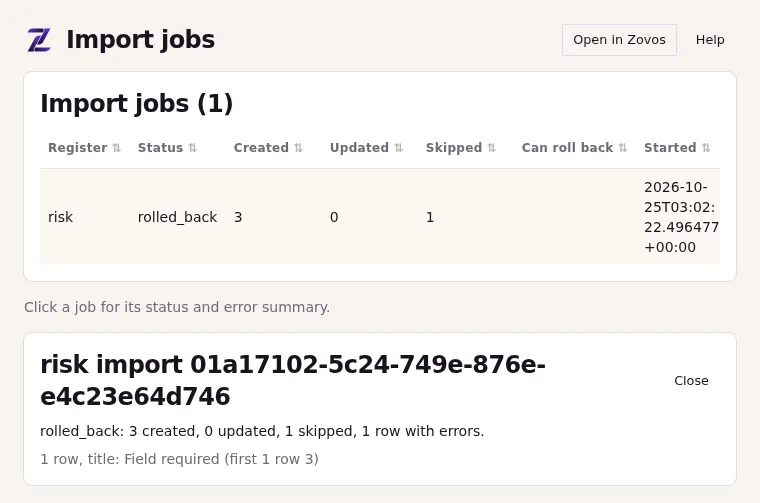
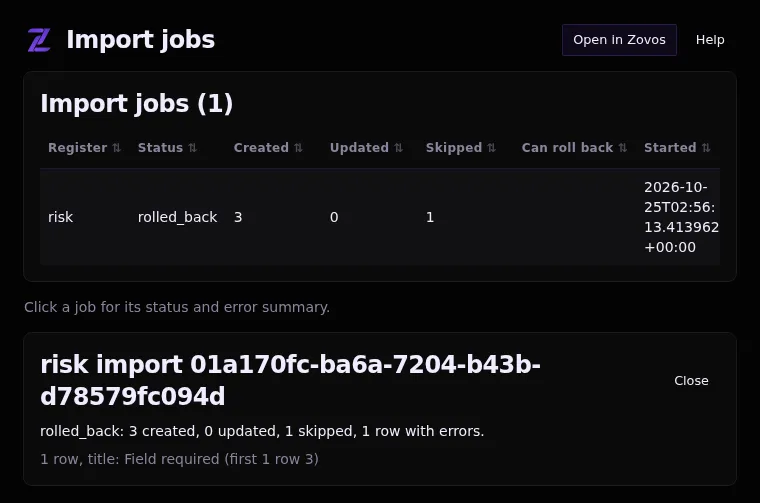
Ask to see your imports and the assistant opens open_migration_jobs, which lists each import job with its register, its status, how many records it created, updated and skipped, and when it started. Click a job for its status and a summary of its errors.
Email during onboarding
The product does not send email today. Notifications are delivered in the workspace, through the bell in the top bar and the panels on the Dashboard. The email preferences in settings record your choices but stay inert until email delivery is switched on for the deployment. The product says so on the screen rather than quietly dropping messages. Plan onboarding on the assumption that nobody gets nudged by email.
There is exactly one email in the whole flow. It is the teammate invitation, which is sent by WorkOS, our identity partner, from its own sending domain rather than from Zovos. Ask your mail team to let it through before you start inviting people, or your first invitations will sit in quarantine.
Your institution profile and your records
The institution profile records your charter type, asset band, product lines and primary examiner. A credit union also records whether it holds a federal charter, which scopes rules such as 12 CFR 713.2 to federal credit unions, and an SEC-registrant flag adds the SEC frameworks to the recommendations you see at enrollment, where Zovos recommends frameworks by charter and asset size. Record your jurisdiction footprint, the states where you hold a charter, have branches, lend, have deposit customers or employ people, so the state rule packs can draft which state rules apply, as Frameworks & regulatory updates describes.
When you import your registers, each record's owner is a member of your team, picked or matched by name, and each first-line record has an owning business unit, which the complaint, information system, loss event and other imports can carry. An import refuses a file that is not UTF-8, with a link to Save a spreadsheet as CSV UTF-8, recognises each column by its own field name, reports the columns it cannot map, and skips a row that names a retired business unit with a row error. The import wizard in your AI assistant lists any hand-entered rows a re-import would replace. An institution moving from another board portal imports its past minutes and books too, as Board & governance describes.
Who does what
| Task | Who does it |
|---|---|
| Creating the workspace and recording your terms | Zovos |
| Connecting your identity provider | Your owner and IdP administrator, on the Access & SSO tab, when you are ready |
| Directory synchronization (SCIM) | Set up with Zovos |
| Mapping directory groups to Zovos roles | You, on the Access & SSO tab in Settings |
| Assigning job families to teammates | You, on the Team screen or through directory group mappings |
| Enrolling frameworks, importing policies and controls | You |
| Inviting teammates and granting examiner access | You |
| Indexing the regulatory library for your workspace | Zovos |
| Recovering an IP allowlist you locked yourself out of | Zovos support |
If anything in the sequence above stalls, contact support. We prioritize anything blocking an examination.